CartThrob Expired Cart Notifications Version 2.0.0
CartThrob Expired/Abandoned Cart Notifications add-on enables your CartThrob enabled website to send email notifications when your customer has abandoned their cart. Studies have proven that follow up emails for abandoned carts is a highly effective method of completing a sale, as well as increasing the per-sale transaction amount by sending special offers with these notifications. This add-on makes it simple to create a multie-tiered notification system for customers that have abandoned their carts.
CartThrob Expired Cart Notifications is an add-on for CartThrob. Like other CartThrob add-ons, it must be uploaded and installed on your website, and CartThrob must be active for it to run. To use this add-on you will need to create notification templates. The content of these templates will be emailed to customers if their cart has been abandoned.
- Features
- Requirements
- Installation
- Upgrading
- Settings
- CRON
- Debugging
- Notifications
- Testing Procedures
- Change Log
Features
- Create tiered notifications, with emails sent from a few minutes up to weeks after the customer's cart has been abandoned.
- Specify multiple email templates for early notifications, and additional generic emails for ongoing reminders of an abandoned cart
- Uses standard EE templates system to store notification templates.
- Set limit on how many additional follow-up emails the customer should get.
Requirements
For the best experience, we recommend mirroring ExpressionEngine's requirements:
- ExpressionEngine 5+
- CartThrob 4+
- PHP 7+, running with PHP-FPM
Installation
- Upload the
cartthrob_expired_cart_notificationsfolder to/system/user/addons/ - Install the CartThrob Expired Cart Notifications Add-On from the ExpressionEngine Add-On Manager
- Create notification templates using EE's template system
- Go to the Developer » Add-Ons » CartThrob Expired Cart Notifications settings and configure one or more notifications
Upgrading
Prior to 2.0
- Uninstall CartThrob Expired Cart Notifications Add-On
- Follow Installation Instructions
After 2.0
- Upload the
cartthrob_expired_cart_notificationsfolder to/system/user/addons/Overwriting existing files - Go to Developer » Add-Ons and click "Update to X"
Settings
These settings are primarily notifications settings, which are covered in more detail below
CartThrob Expired Cart Notifications Settings 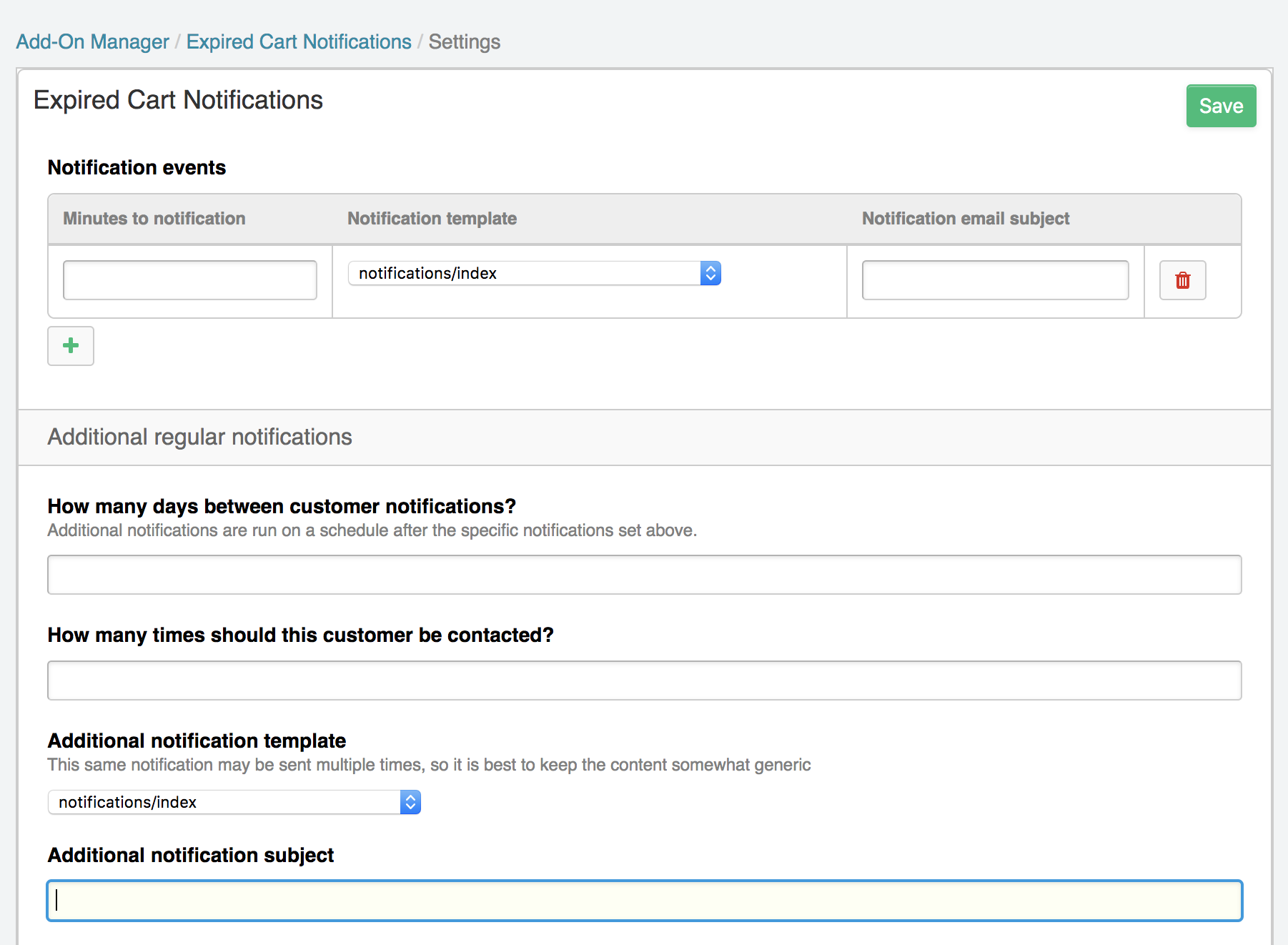
CRON
This add-on requires that your system be told to periodically check for expired carts. To this end, there is a CRON url listed in the CartThrob Expired Cart Notifications settings. You can either manually visit this URL check for expired carts or ideally you should automate the process by using CRON. CRON is a time based scheduling application already available on most hosting platforms. CRON can be configured to call a URL on your website that checks for expired carts. Setup of CRON is fairly simple. Most hosts provide an administrative interface for CRON, or you can generally provide our CRON command to the host's support and they will add it for you. Once cron is set up once, you need take no further action with it in the future.
The following are sample scripts you can use with CRON. Generally, you will need to either contact your hosting company to add those commands, or using your hosting control panel, you will need to set up a CRON job using those commands. Essentially, once you've figured out where you can add CRON jobs, you just need to copy the command from the subscriptions settings page, paste it, and save the CRON job.
NOTE: Our CRON methods make use of a file called extload.php in themes/user/cartthrob/lib. If you have changed the location of your system folder, you will need to update extload.php with the location of your system folder.
There are several methods available on most systems to run CRON.
If your server allows the use of PHP's "passthru" function:
/your/server/path/to/themes/user/cartthrob/lib/extload.php cartthrob_expired_cart_notifications get_expired_cartsYou can also manually call your rebill URL manually. (the URL is listed in your settings page)
Or it can be called via CURL
curl --silent "your url" 2>&1 /dev/null
It may be easiest, if you are unfamiliar with CRON to contact your hosting company and ask them the best way to set up CRON, or request that they set it up for you. Using the provided scripts, it should be fairly straightforward to add.
Expired Cart Notifications Settings 
Debug Settings
One particular setting to pay attention to is the "Notification Debug" setting
If this is enabled abandoned carts will not be marked as checked, so you can continue testing over and over on the same abandoned carts. In any case, you will need to allow some time to pass between when carts are created for testing and when you begin testing the notifications sent from this module. Enabling this setting just means that the same cart data can be used over and over during testing. It's also important to note that CartThrob itself deletes carts over time if they've been abandoned. If these carts are not deleted, you will end up with quite a bit of needless entries in your database. Generally speaking it's best to set up your abandoned notifications to be active within the first 24 hours.

Notifications
Unlike many CartThrob add-ons, this one has its own notifications manager where you can create and edit notifications. Like other CartThrob add-ons, it also uses ExpressionEngine's template system to store template data. You create notifications using EE's standard template system, and then select these templates in CartThrob Expired Cart Notification templates. You can set multiple different templates that will be sent at different times after the cart has been abandoned. A common usage would be:
- to set one template 2 hours after abandonment
- one day after abandonment
- two days after abandonment
- one week after abandonment
- additional follow up emails weekly or monthly
There are two types of notifications
- Initial notifications
- Additional regular notifications
Initial notifications are intended to be immediate follow ups for abandoned carts. These should be unique notifications, often including a special offer for returning customers
Additional regular notifications are intended to be more long-term follow ups, and really only intended for sites that require membership to purchase items. This is ideal for private carts set up for vendors or distributors, or other private shopping systems where additional regular notifications will be welcomed by the receiver rather than treated as aggressive spam by annoyed customers.
If you are going to send very many abandoned cart notifications, or use the Additional Regular Notifications, it's best to require that your customers are always logged in before they're allowed to add their email address to the cart. CartThrob tracks carts to specific members, and if they log in the last cart they were working with will be relaunched. For guests however, it may not be possible to track a specific cart ID to their purchase if they return to the site, in which case it's best to only send one follow up email. Whenever any specific cart is part of a completed transaction, no additional notifications will be sent for the owner of that cart.
The additional regular notifications includes settings for the number of times a customer should be recontacted, and how often.
Variables
You can use the following variables in your templates.
{first_name}
				{last_name}
				{address}
				{address2}
				{city}
				{state}
				{zip}
				{country_code}
				{company}

				{language}
				{currency_code}
				{email_address}
				{phone}

				{shipping_address}
				{shipping_address2}
				{shipping_city}
				{shipping_country_code}
				{shipping_first_name}
				{shipping_last_name}
				{shipping_state}
				{shipping_zip}
				{shipping_company}

				{shipping_option}

				{total}              // numeric
				{discount}           // numeric
				{taxable_discount}   // numeric
				{tax}                // numeric
				{subtotal}           // numeric
				{taxable_subtotal}   // numeric
				{shipping}           // numeric
				{shippable_subtotal} // numeric

				{items}
					// use in combination with a channel entries tag
					// to output additional information about this product
					{entry_id}
					{quantity}
					{url_title}
					// outputs a very high number if the item has
					// "unlimited" inventory or untracked inventory
					{inventory}
					// Only outputs if the item has a manually set title.
					{title}
					// Only outputs if the item has a manually set price.
					{price}
				{/items}

				// this is the last URL the user visited
				// (as tracked by ExpressionEngine). It's possible that it
				// may be set as a Javascript or CSS file or any other EE page.
				// The last page rendered by EE is saved as the URL,
				// as such this variable may have limited use.
				{url}
Plus you can use all of the cart_info variables which include the proper monetary number formatting
{total_items}
				{total_unique_items}
				{cart_entry_ids}
				{cart_shipping}
				{cart_tax_rate}
				{cart_tax}
				{cart_subtotal}
				{cart_total}
Testing Procedures
The simplest way to test whether or not your notifications are working correctly is to simulate the whole cart expiration and notification process. Do the following:
- Create at least 1 notification
- Set the time that these notifications should be sent to 1 minute
- Set the debugging setting to "yes"
- Create a notification template with something simple written in it like "test!"
- Add some items to your cart while you are logged in.
- Wait several minutes
- Load the CRON Notification URL (listed on your settings page toward the bottom) in your browser (nothing will output in this screen)
Once you have loaded that notification URL, the system will send appropriate notifications to the email address associated with the account you were using while adding products to your cart. Feel free to reload this URL multiple times and multiple notifications will be sent. While in debug mode, contact counts will not be updated, so the same email will be sent multiple times.
Change Log
2.0.0
- ExpressionEngine 5+ Initial Release
V1.07
- Fixed issue where settings would not save
- Fixed an issue where adding a new notification would add two notifications with limited ability to save both or remove one.
- Added additional item & totals variables that can be sent in notifications
- Fixed an issue where the debug setting was being ignored